How BudgetFlow works, step by step
There is no setup wizard, no configuration to get through before the app is useful. Here is exactly what happens between creating an account and having a dashboard you can trust.
Create your account
Sign up with an email and password, or continue with Google in one click. There is no credit card field anywhere in the sign-up flow, and no trial period that quietly ends. As soon as you have an account, every tool is unlocked, not a limited preview of it.
- Google sign-in uses your existing Google account, no new password to remember
- Email sign-up needs just a name, email, and password
- You land straight on your dashboard, not a paywall or a plan-selection screen
Add what is actually true about your money
This is the step that determines whether the dashboard becomes useful or stays empty. BudgetFlow does not pre-fill anything with placeholder numbers, so what you see is only as accurate as what you have entered. Most people start with whichever of these is most pressing.
- Add each property you pay rent on, with its landlord and due day, under Rent Tracking
- Log your income, either manually by category or by uploading a payslip so the amount fills in for you
- Set up a Savings Plan if you run or belong to a chama or other group savings arrangement
- Record any money you have lent out, so it stops living only in your memory
- Add a loan you've borrowed from a bank or SACCO, with its interest rate and term, under Debts
- Assign a monthly budget to the spending categories that matter to you
Check the dashboard before payday, not after
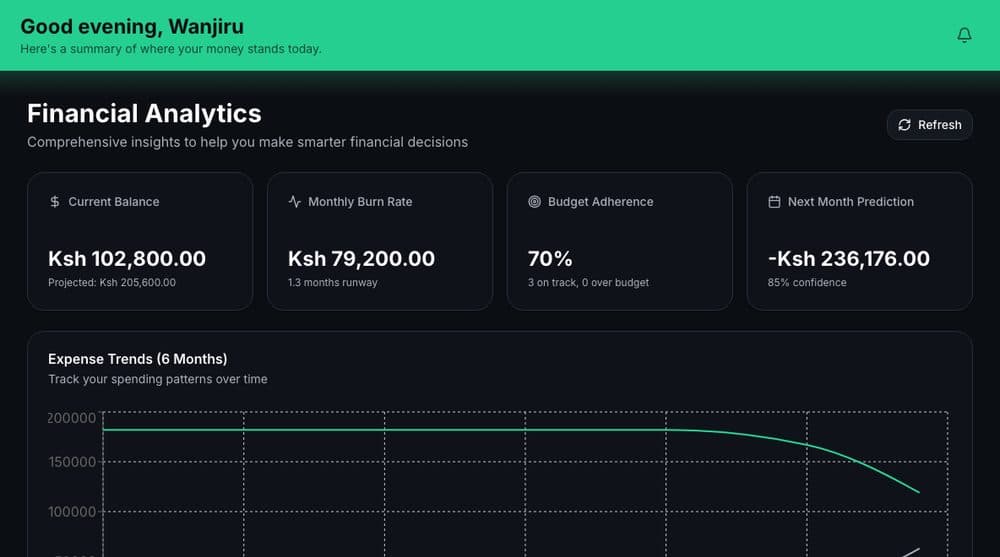
Once your rent, income, and expenses are in, the dashboard becomes a single place to see where you stand: what is due soon, how much of your income is already committed, and whether this month is on track compared to your budget. The analytics view goes a step further, showing your burn rate and a projection for next month based on your recent pattern.
- Rent, bills, and loan installments due in the next few days surface automatically, so nothing arrives as a surprise
- The remaining-balance figure updates as you log income and expenses, not once a month
- Analytics shows a six-month trend, so a bad month is visible as a blip, not a mystery
What happens to what you enter
Everything you add, rent details, income, lending records, savings contributions, is visible only to you. It is encrypted in transit, never sold or shared with third parties, and you can export or delete it at any time from Settings. Nothing is shared automatically with anyone else, including other members of a savings plan beyond the contribution record itself.
See it with your own numbers
Free to start, no card required, and every tool unlocked from the first minute.